Basic installation
Add PushFeedback to an HTML site with a floating button, an inline button, an embedded form, or inline like and dislike buttons. Choose one mode below. The framework guides show where to place the same widget in your site.
Prerequisites
- A PushFeedback account. If you don't have one, sign up for free.
- A project created in your PushFeedback dashboard. If you haven't created one yet, follow Quickstart.
Replace <YOUR_PROJECT_ID> in the examples with your project's ID.
Installation
Floating button
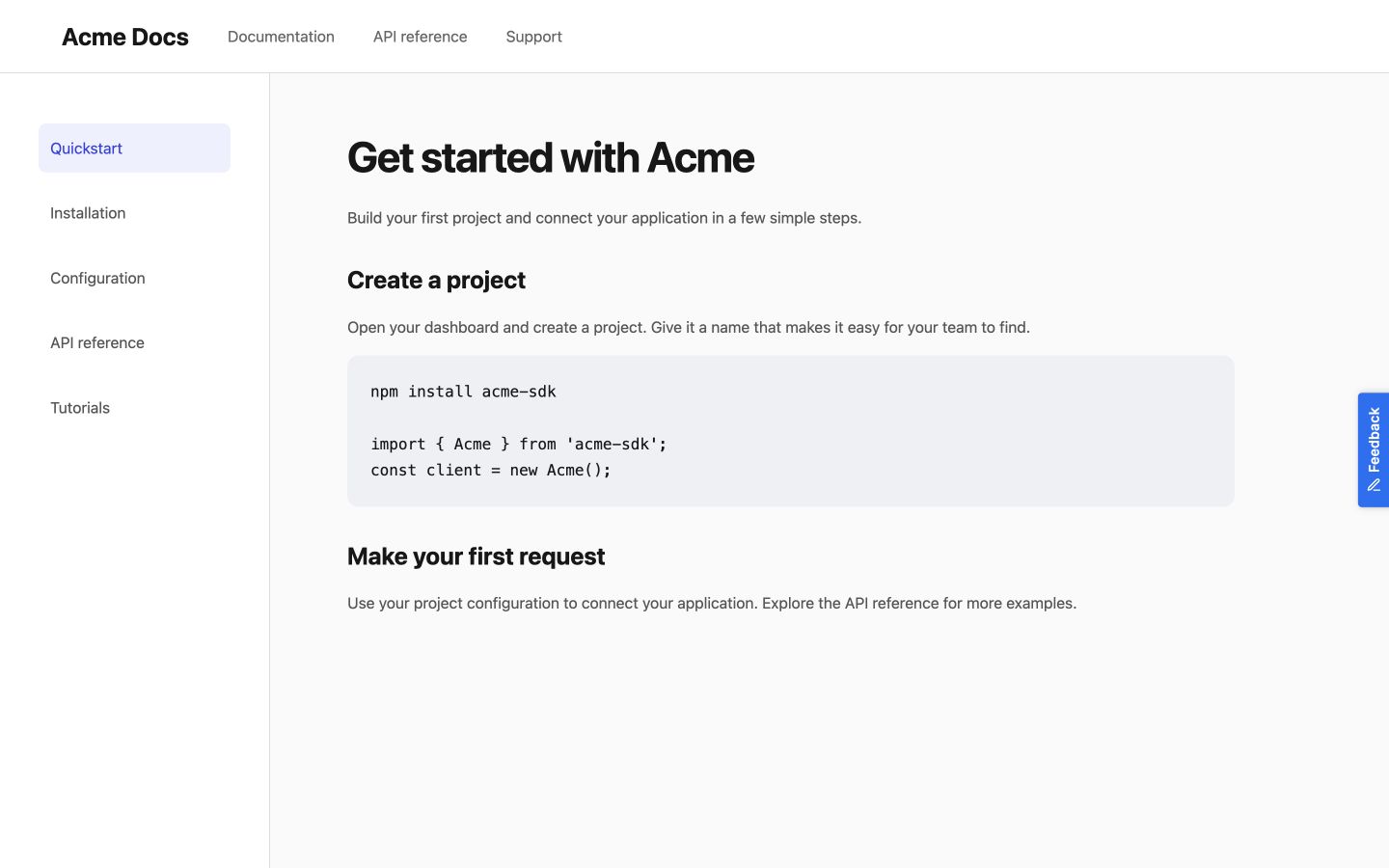
The button stays on the right edge of the browser and opens the form in a sidebar.
-
Add the stylesheet and script inside your page's
<head>:<link rel="stylesheet" href="https://cdn.jsdelivr.net/npm/pushfeedback/dist/pushfeedback/pushfeedback.css"><script type="module" src="https://cdn.jsdelivr.net/npm/pushfeedback/dist/pushfeedback/pushfeedback.esm.js"></script> -
Add the button before the closing
</body>tag:<feedback-button project="<YOUR_PROJECT_ID>" button-position="center-right" modal-position="sidebar-right" button-style="dark">Feedback</feedback-button>
Inline button
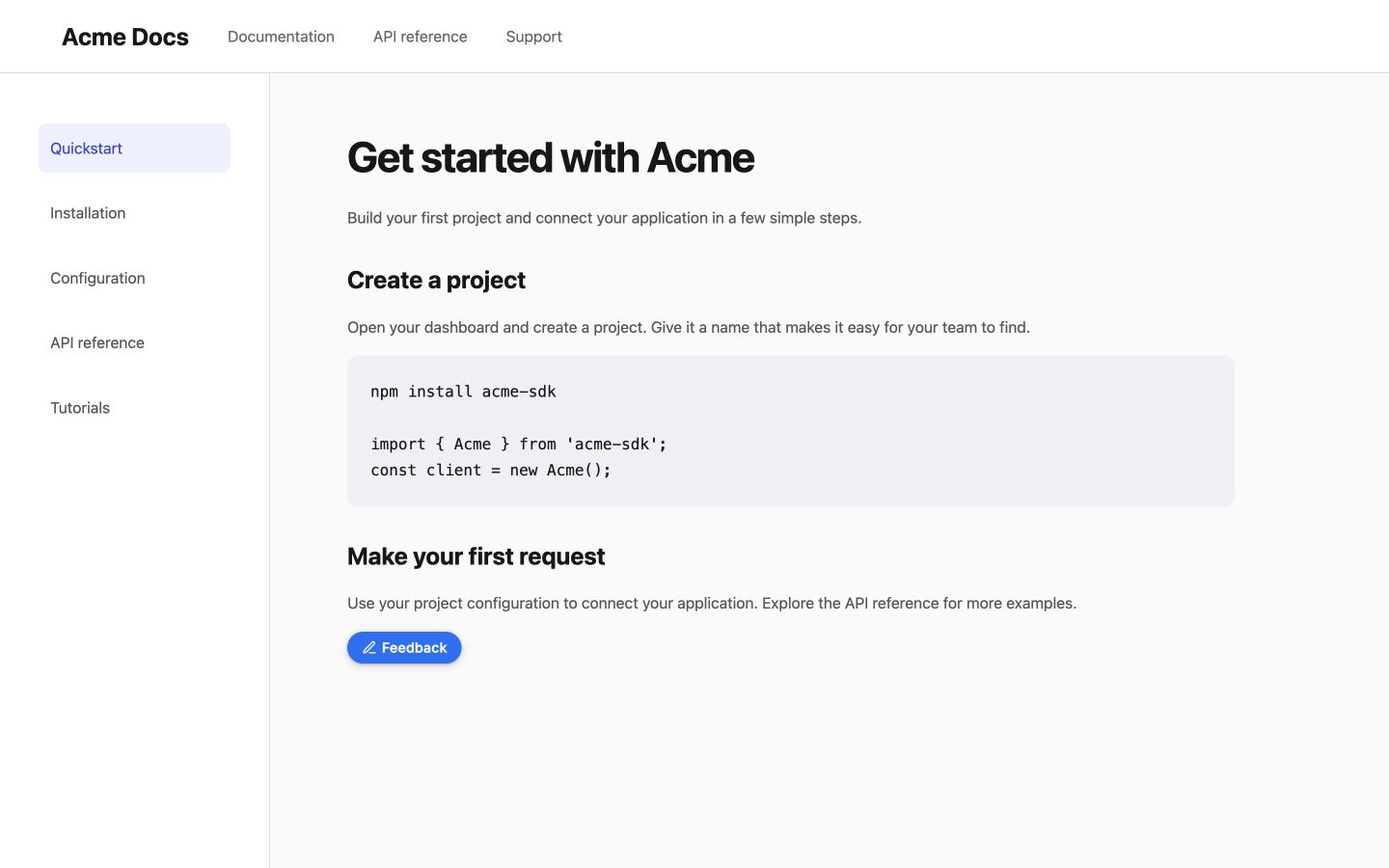
Place the button in your page content. Clicking it opens the feedback form.
-
Add the stylesheet and script inside your page's
<head>:<link rel="stylesheet" href="https://cdn.jsdelivr.net/npm/pushfeedback/dist/pushfeedback/pushfeedback.css"><script type="module" src="https://cdn.jsdelivr.net/npm/pushfeedback/dist/pushfeedback/pushfeedback.esm.js"></script> -
Add the button where it should appear:
<feedback-button project="<YOUR_PROJECT_ID>" button-position="default" modal-position="center" button-style="dark">Feedback</feedback-button>
Embedded form
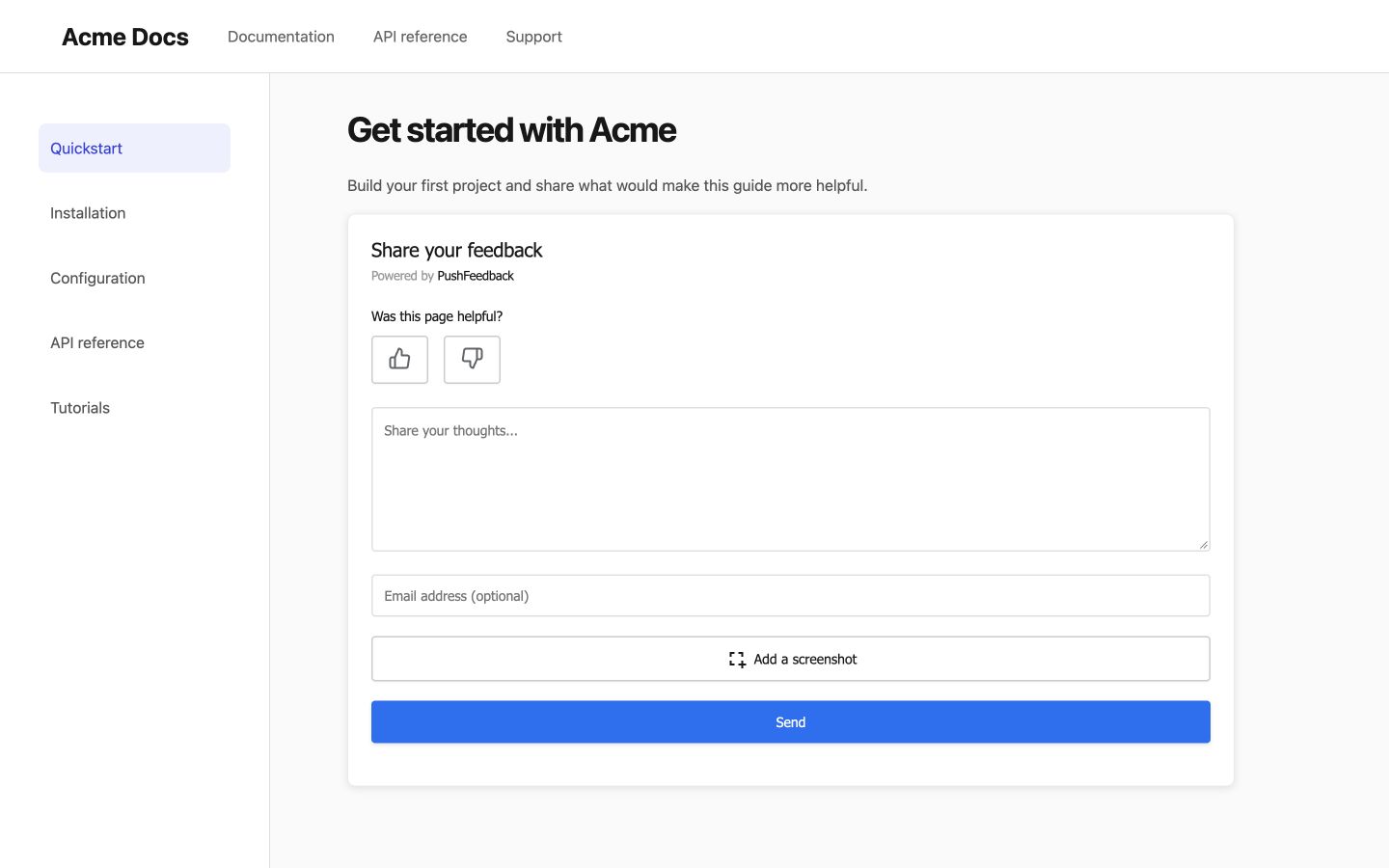
The form is visible on the page without a trigger button or backdrop.
-
Add the stylesheet and script inside your page's
<head>:<link rel="stylesheet" href="https://cdn.jsdelivr.net/npm/pushfeedback/dist/pushfeedback/pushfeedback.css"><script type="module" src="https://cdn.jsdelivr.net/npm/pushfeedback/dist/pushfeedback/pushfeedback.esm.js"></script> -
Add the form where it should appear:
<feedback-modal project="<YOUR_PROJECT_ID>" embedded="true"></feedback-modal>
The form has no close button. When a visitor adds a screenshot, the capture controls and editor use the browser viewport even if the form sits inside a narrow section. See Layout for form options and Text for screenshot labels.
Like and dislike buttons
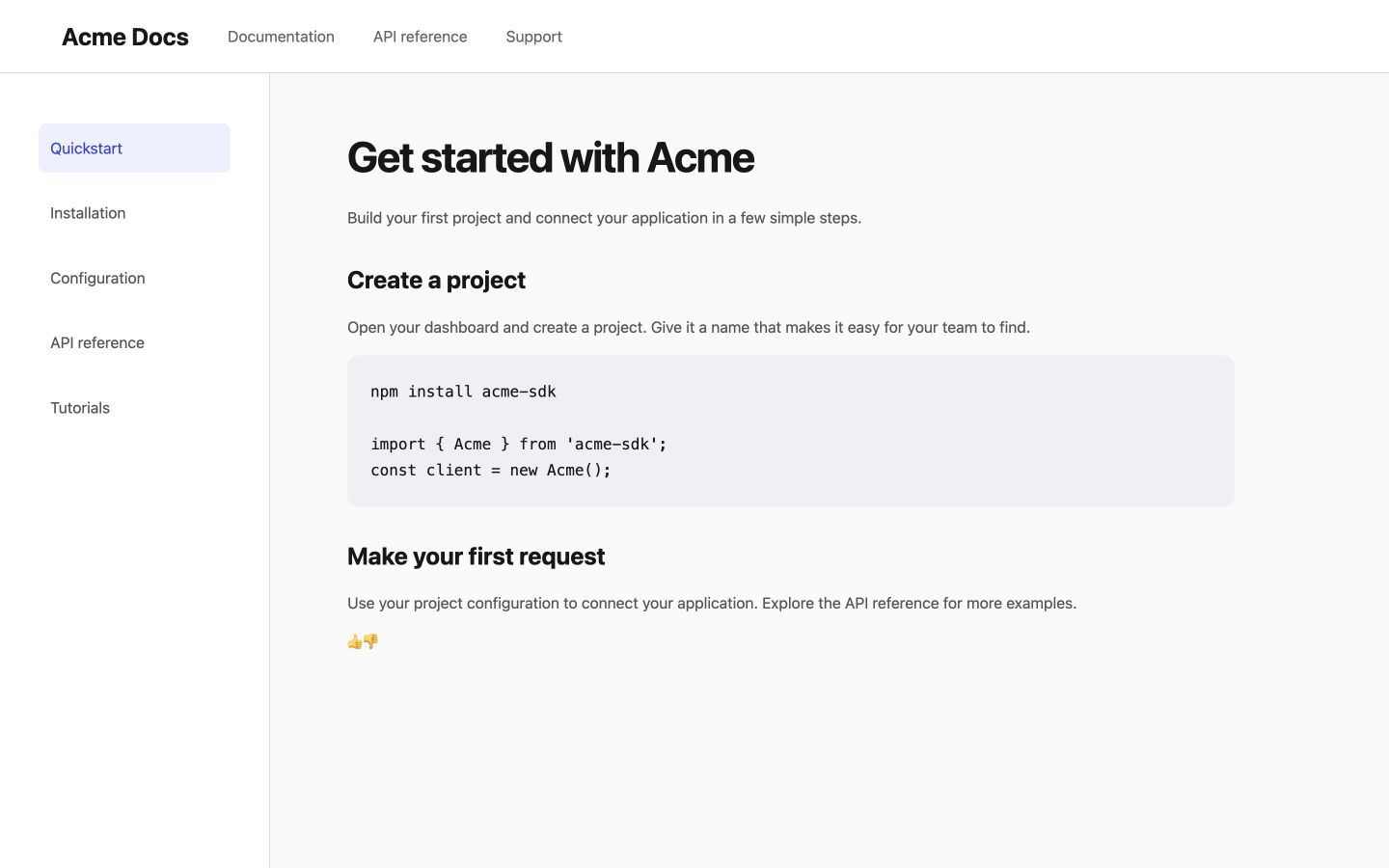
Place two rating buttons at the end of a page. Clicking one opens the form with that rating selected; it does not submit feedback until the visitor sends it.
-
Add the stylesheet and script inside your page's
<head>:<link rel="stylesheet" href="https://cdn.jsdelivr.net/npm/pushfeedback/dist/pushfeedback/pushfeedback.css"><script type="module" src="https://cdn.jsdelivr.net/npm/pushfeedback/dist/pushfeedback/pushfeedback.esm.js"></script> -
Add the controls where readers finish the content:
<p>Was this helpful?</p><div class="pushfeedback-thumbs-row"><feedback-button project="<YOUR_PROJECT_ID>" rating="1" button-position="default" modal-position="center" button-style="default" custom-font="true"><span class="pushfeedback-thumb-label">Helpful</span><svg xmlns="http://www.w3.org/2000/svg" width="24" height="24" viewBox="0 0 24 24" fill="none" stroke="currentColor" stroke-width="2" stroke-linecap="round" stroke-linejoin="round" aria-hidden="true"><path d="M14 9V5a3 3 0 0 0-3-3l-4 9v11h11.28a2 2 0 0 0 2-1.7l1.38-9a2 2 0 0 0-2-2.3zM7 22H4a2 2 0 0 1-2-2v-7a2 2 0 0 1 2-2h3" /></svg></feedback-button><feedback-button project="<YOUR_PROJECT_ID>" rating="0" button-position="default" modal-position="center" button-style="default" custom-font="true"><span class="pushfeedback-thumb-label">Not helpful</span><svg xmlns="http://www.w3.org/2000/svg" width="24" height="24" viewBox="0 0 24 24" fill="none" stroke="currentColor" stroke-width="2" stroke-linecap="round" stroke-linejoin="round" aria-hidden="true"><path d="M10 15v4a3 3 0 0 0 3 3l4-9V2H5.72a2 2 0 0 0-2 1.7l-1.38 9a2 2 0 0 0 2 2.3zm7-13h2.67A2.31 2.31 0 0 1 22 4v7a2.31 2.31 0 0 1-2.33 2H17" /></svg></feedback-button></div>
The PushFeedback stylesheet sizes and spaces the buttons. The labels remain available to screen readers, and the SVGs are decorative. No extra CSS is needed.
Next steps
- Framework guides — Place the widget in a documentation site, app, or website builder.
- Customization — Change the layout, styles, and text.
- Integrations — Send feedback to your team.