Feedback widget for NPM projects
PushFeedback collects user feedback directly from your website. This guide covers installation via NPM.
Prerequisites
Before you begin, you need:
- A PushFeedback account. If you don't have one, sign up for free.
- A project created in your PushFeedback dashboard. If you haven't created one yet, follow the steps in the Quickstart guide.
- Node.js installed.
Installation
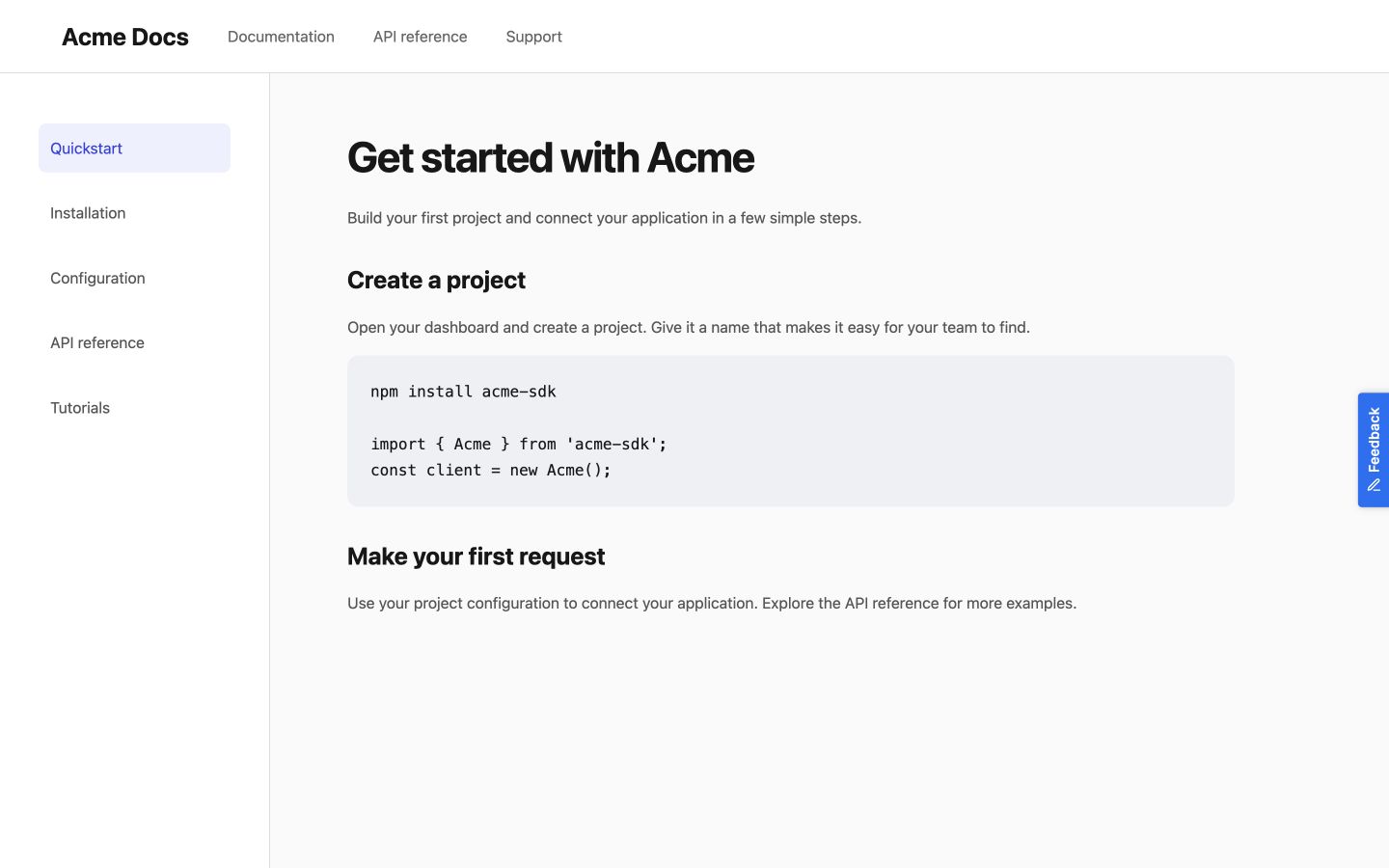
Floating button
-
Install PushFeedback:
npm install pushfeedback -
Make sure you embed the styles and scripts in your primary JS or entry file:
// Incorporate PushFeedback stylesimport 'pushfeedback/dist/pushfeedback/pushfeedback.css';// Initialize the PushFeedback widgetimport 'pushfeedback/dist/pushfeedback/pushfeedback.esm.js'; -
Just before the closing body tag of your website's HTML, add the following snippet:
<feedback-button project="<YOUR_PROJECT_ID>" button-position="bottom-right" modal-position="bottom-right" button-style="dark">Feedback</feedback-button>Replace
<YOUR_PROJECT_ID>with your project's ID from the PushFeedback dashboard. -
Open the website in a web browser to verify the feedback button appears and works correctly.
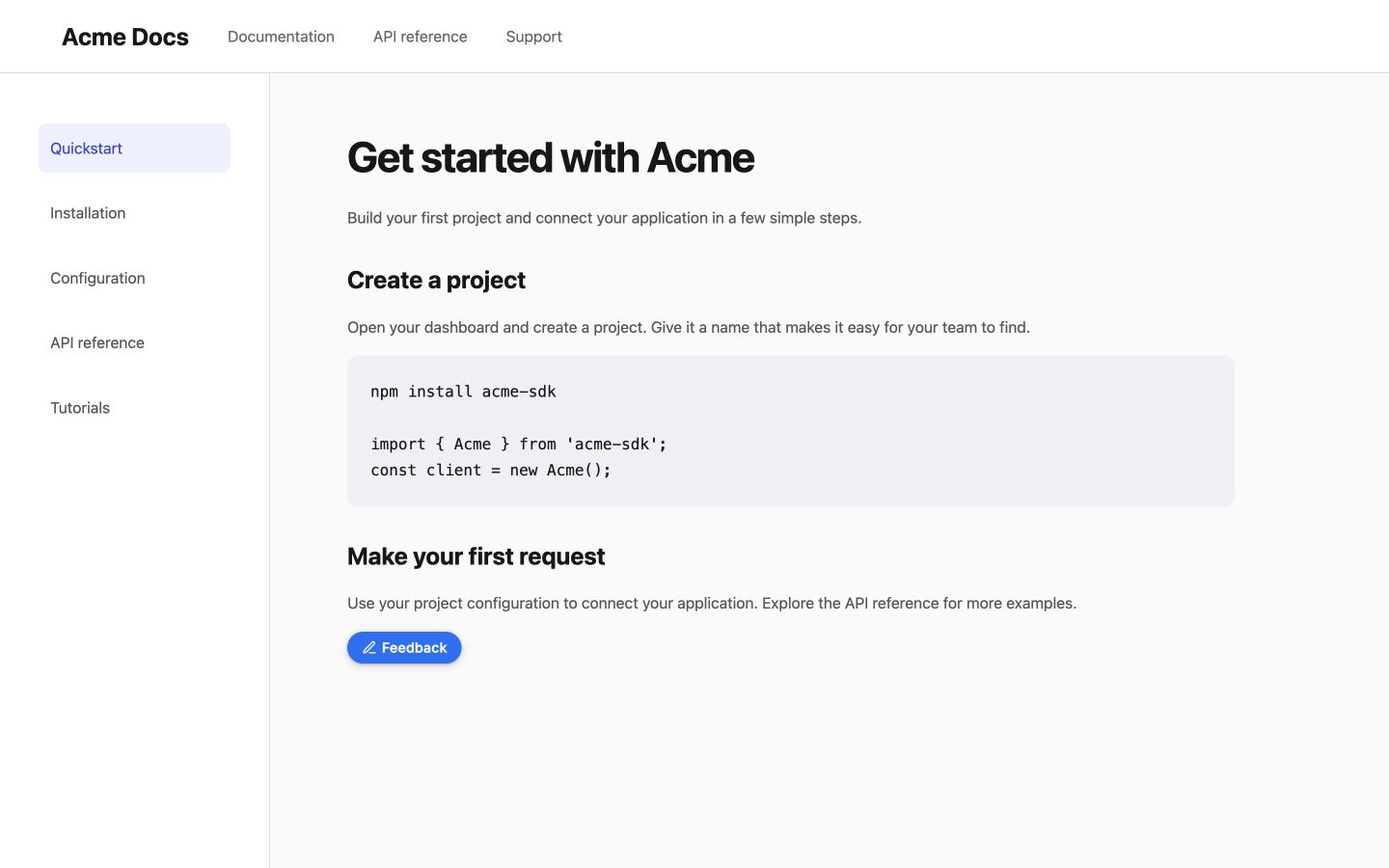
Inline button
-
Install the package if needed:
npm install pushfeedback -
Import the stylesheet and widget in your application entry file:
import 'pushfeedback/dist/pushfeedback/pushfeedback.css';import 'pushfeedback/dist/pushfeedback/pushfeedback.esm.js'; -
Place this markup in your HTML where the content ends:
<feedback-button project="<YOUR_PROJECT_ID>" button-position="default" modal-position="center" button-style="dark">Feedback</feedback-button>
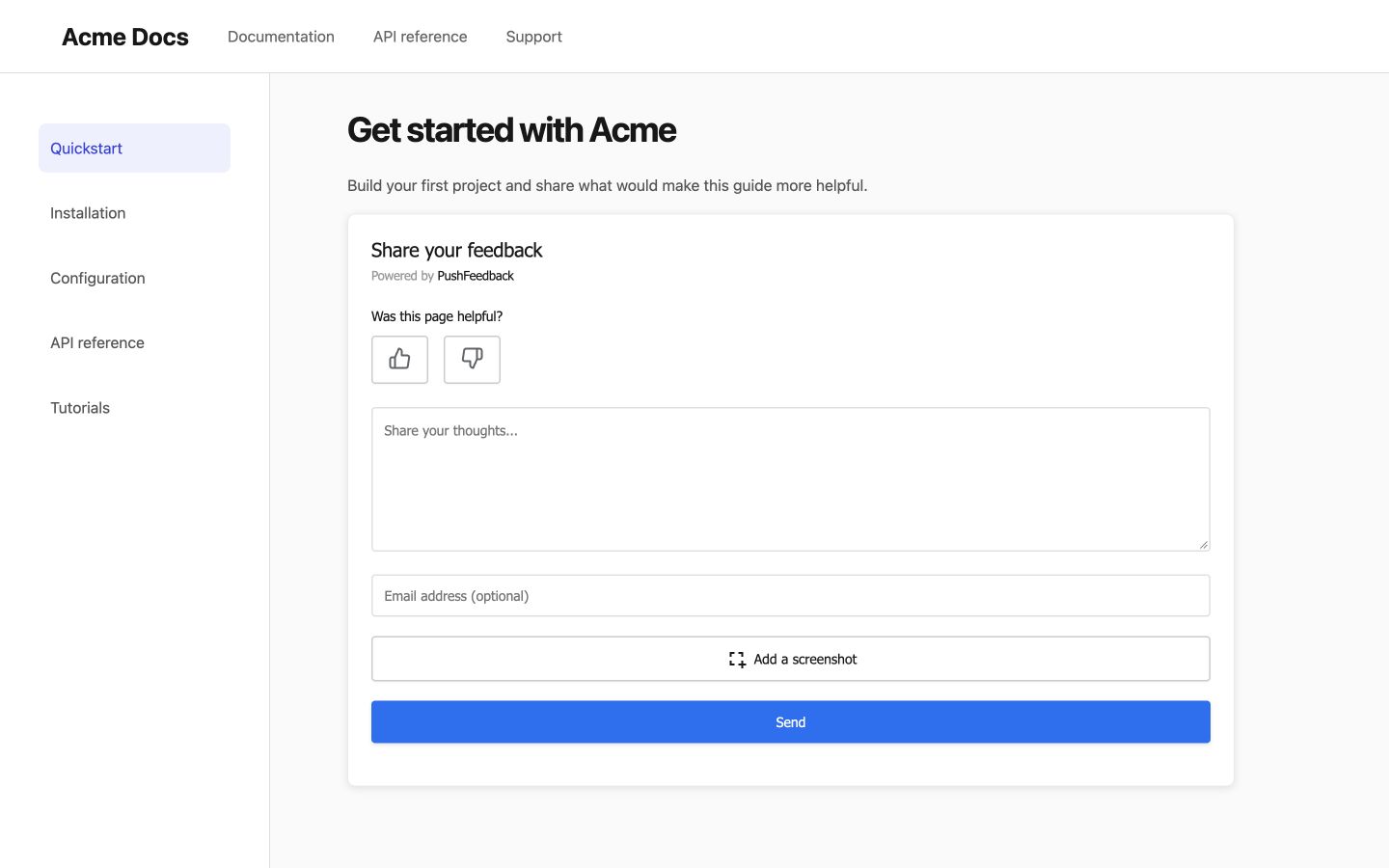
Embedded form
-
Install the package if needed:
npm install pushfeedback -
Import the stylesheet and widget in your application entry file:
import 'pushfeedback/dist/pushfeedback/pushfeedback.css';import 'pushfeedback/dist/pushfeedback/pushfeedback.esm.js'; -
Place this markup in your HTML where the content ends:
<feedback-modal project="<YOUR_PROJECT_ID>" embedded="true"></feedback-modal>
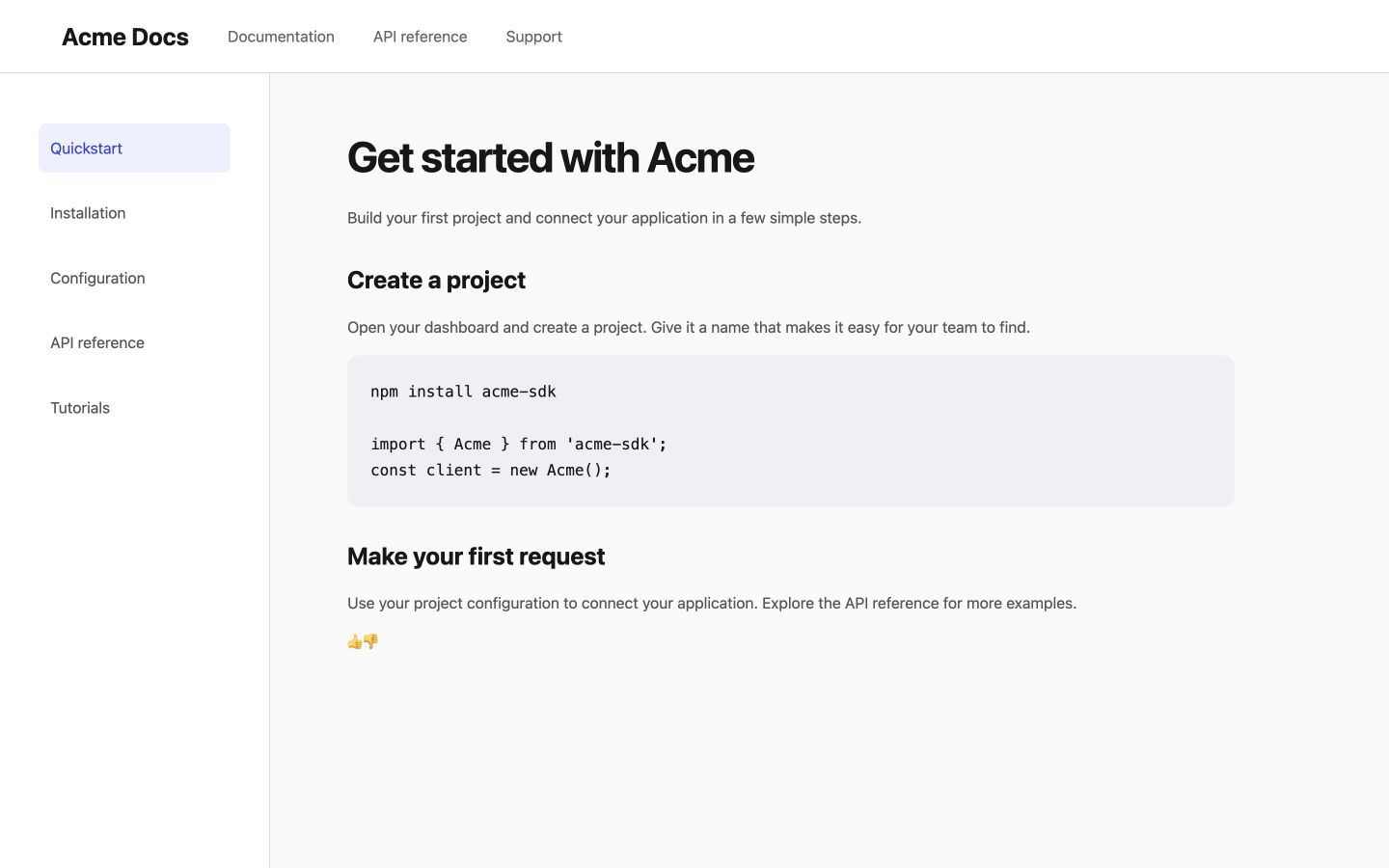
Like and dislike buttons
-
Install the package if needed:
npm install pushfeedback -
Import the stylesheet and widget in your application entry file:
import 'pushfeedback/dist/pushfeedback/pushfeedback.css';import 'pushfeedback/dist/pushfeedback/pushfeedback.esm.js'; -
Place this markup in your HTML where the content ends:
<p>Was this helpful?</p><div class="pushfeedback-thumbs-row"><feedback-button project="<YOUR_PROJECT_ID>" rating="1" button-position="default" modal-position="center" button-style="default" custom-font="true"><span class="pushfeedback-thumb-label">Helpful</span><svg xmlns="http://www.w3.org/2000/svg" width="24" height="24" viewBox="0 0 24 24" fill="none" stroke="currentColor" stroke-width="2" stroke-linecap="round" stroke-linejoin="round" aria-hidden="true"><path d="M14 9V5a3 3 0 0 0-3-3l-4 9v11h11.28a2 2 0 0 0 2-1.7l1.38-9a2 2 0 0 0-2-2.3zM7 22H4a2 2 0 0 1-2-2v-7a2 2 0 0 1 2-2h3" /></svg></feedback-button><feedback-button project="<YOUR_PROJECT_ID>" rating="0" button-position="default" modal-position="center" button-style="default" custom-font="true"><span class="pushfeedback-thumb-label">Not helpful</span><svg xmlns="http://www.w3.org/2000/svg" width="24" height="24" viewBox="0 0 24 24" fill="none" stroke="currentColor" stroke-width="2" stroke-linecap="round" stroke-linejoin="round" aria-hidden="true"><path d="M10 15v4a3 3 0 0 0 3 3l4-9V2H5.72a2 2 0 0 0-2 1.7l-1.38 9a2 2 0 0 0 2 2.3zm7-13h2.67A2.31 2.31 0 0 1 22 4v7a2.31 2.31 0 0 1-2.33 2H17" /></svg></feedback-button></div>
Next steps
Choose what to do next:
- Customization — Adjust the widget's layout, styles, and text.
- Integrations — Forward feedback to Slack, email, Jira, and more.