Enabling Google reCAPTCHA v3
Add invisible bot protection to your feedback widget with Google reCAPTCHA v3. It runs in the background without interrupting your users.
Get your reCAPTCHA keys
- Visit the reCAPTCHA Admin Console and sign in.
- Click + to register a new site.
- Select reCAPTCHA v3 as the type.
- Add your domain(s) without
https://(e.g.,docs.example.com). - Submit and copy both the Site Key and Secret Key.
Enable in your project
- Go to your project in the PushFeedback dashboard.
- Click Settings and find the Security section.
- Check Enable reCAPTCHA v3, then paste the Site Key and Secret Key.
- Set Minimum Score. The default is
0.5. - Click Save on the Security card.
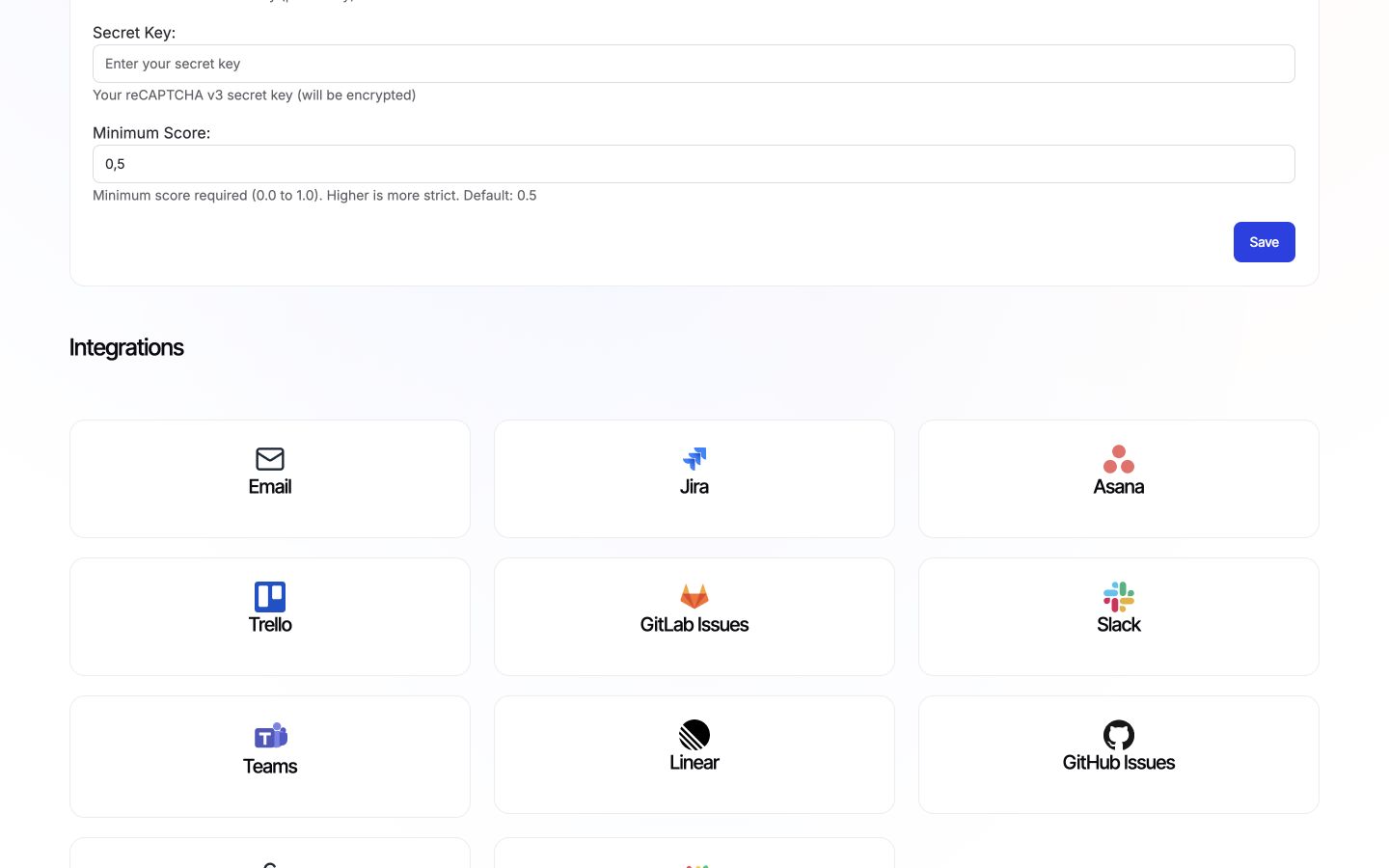
Your widget will now verify submissions automatically. No code changes needed.
Adjusting the score threshold
reCAPTCHA scores range from 0.0 (bot) to 1.0 (human). Start with 0.5 and adjust:
- Getting spam? Increase to 0.6-0.7
- Blocking real users? Decrease to 0.3-0.4
Notes
- Your secret key is encrypted before storage.
- HTTPS is required (localhost works for testing).
- The reCAPTCHA badge is hidden, and the required Google disclosure text is automatically displayed in the widget footer.
- You can customize the disclosure text using the
recaptchaTextprop (see Layout customization).
Troubleshooting
-
"reCAPTCHA verification required" - Ad blockers or privacy extensions may be blocking the script. Ask users to disable them temporarily.
-
"reCAPTCHA verification failed" - Check your keys are correct and your domain is registered in Google's console. If legitimate users are blocked, lower your score threshold.
-
General issues - Verify you selected reCAPTCHA v3 (not v2) and both keys are from the same site registration.