Email integration
PushFeedback can send email notifications when users submit feedback. Email notifications are available on every plan, including the free plan, which notifies a single address. Paid plans notify up to three.
Prerequisites
- A PushFeedback account. If you don't have one, sign up for free.
- A project created in your PushFeedback dashboard. If you haven't created one yet, follow the steps in the Quickstart guide.
Set up email notifications
-
Open app.pushfeedback.com and log in.
-
Go to Projects and select your project.
-
Click Settings, then under Integrations, select Email.
-
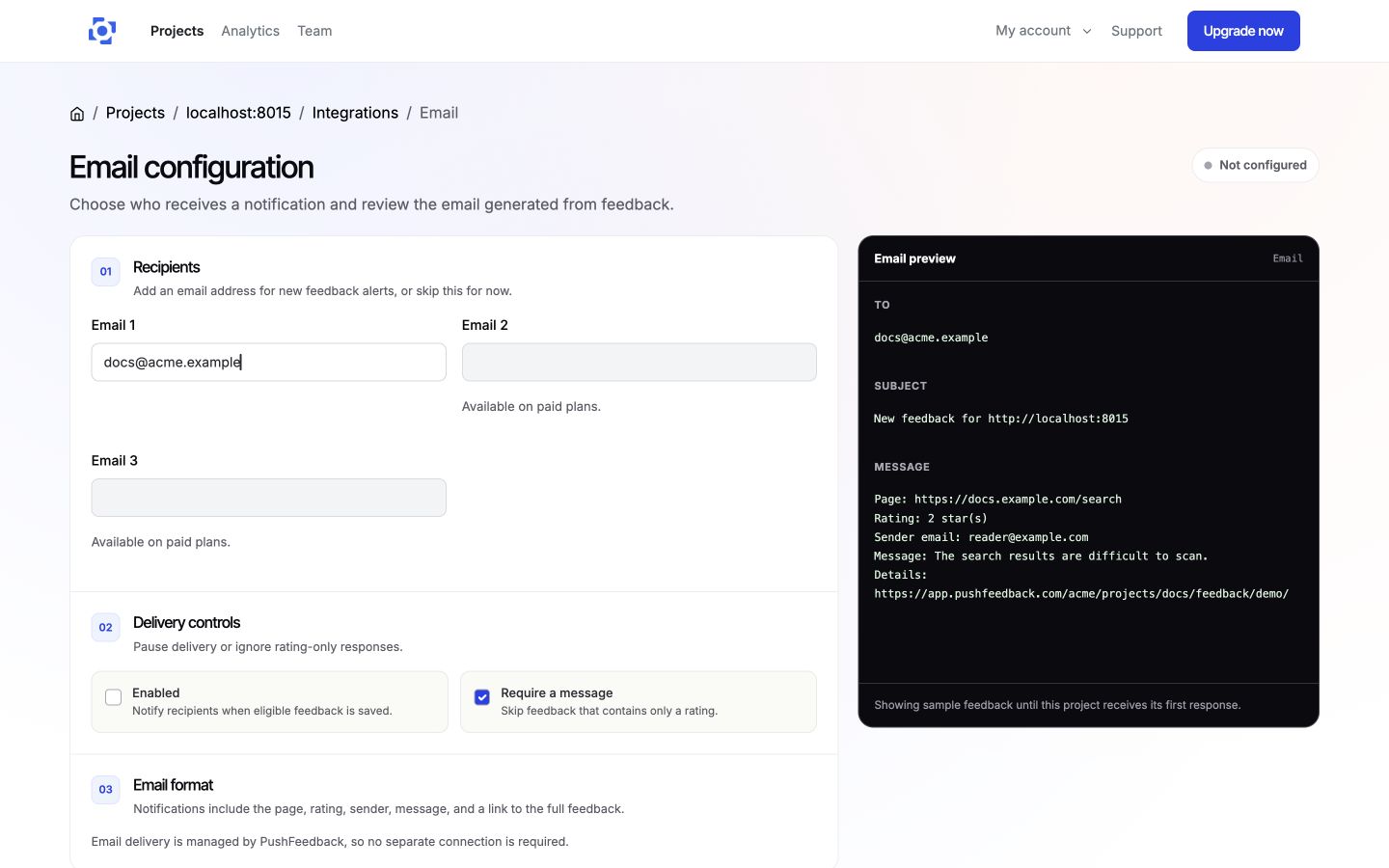
In 01 Recipients, add the email addresses of the team members you'd like to notify when feedback is received.
infoThe free plan notifies one address. Paid plans let you configure up to three. The dashboard disables the address fields your plan doesn't cover. If you need to notify more recipients, consider using an email distribution list.
-
In 02 Delivery controls, keep Enabled selected or pause notifications without removing the recipients. Select Require a message to skip rating-only feedback.
-
On wider screens, review the generated email in 03 Email format. The preview uses the project's latest feedback, or sample data when the project is empty.
-
Select Save integration.
-
To ensure the changes are in place, go to any webpage where you've implemented the PushFeedback widget and send a feedback entry. The specified email addresses should receive the feedback.
Notifications on the free plan
The free plan includes 25 per-entry notification emails per team. The count is lifetime, not monthly, and it counts emails actually sent: an entry that arrives while no address is configured does not use one up, and notifying every configured address about the same entry counts as one. The last email of the allowance tells you it is the last.
After that, PushFeedback sends one monthly summary per team instead, with the number of entries received and a link to your dashboard. The summary carries no feedback content, only the count, and it only goes out when feedback actually arrived, to the same addresses configured on your email integrations.
Your feedback itself is never affected. Every entry stays readable in your dashboard, and through the API, on every plan, no matter how much you collect. Paid plans send an email for every entry, with no allowance.
Remove the integration
To disconnect email notifications, go to the integration's settings page in your PushFeedback dashboard and click Remove, then confirm Remove integration. Confirming stops the integration from firing on new feedback immediately.