Zapier integration
PushFeedback sends feedback data to Zapier via webhooks, letting you build workflows for tools that do not have a dedicated PushFeedback integration.
Integrations are only available on the Professional and Unlimited plans. On the free plan, use email notifications instead.
Prerequisites
- A PushFeedback account. If you don't have one, sign up for free.
- A project created in your PushFeedback dashboard. If you haven't created one yet, follow the steps in the Quickstart guide.
- A Zapier account on a paid plan or during their trial period, as Webhooks by Zapier is a built-in tool only available for these users.
Set up the Zapier integration
-
Open app.pushfeedback.com and log in.
-
Go to Projects and select your project.
-
Click Settings, then under Integrations, select Webhook.
-
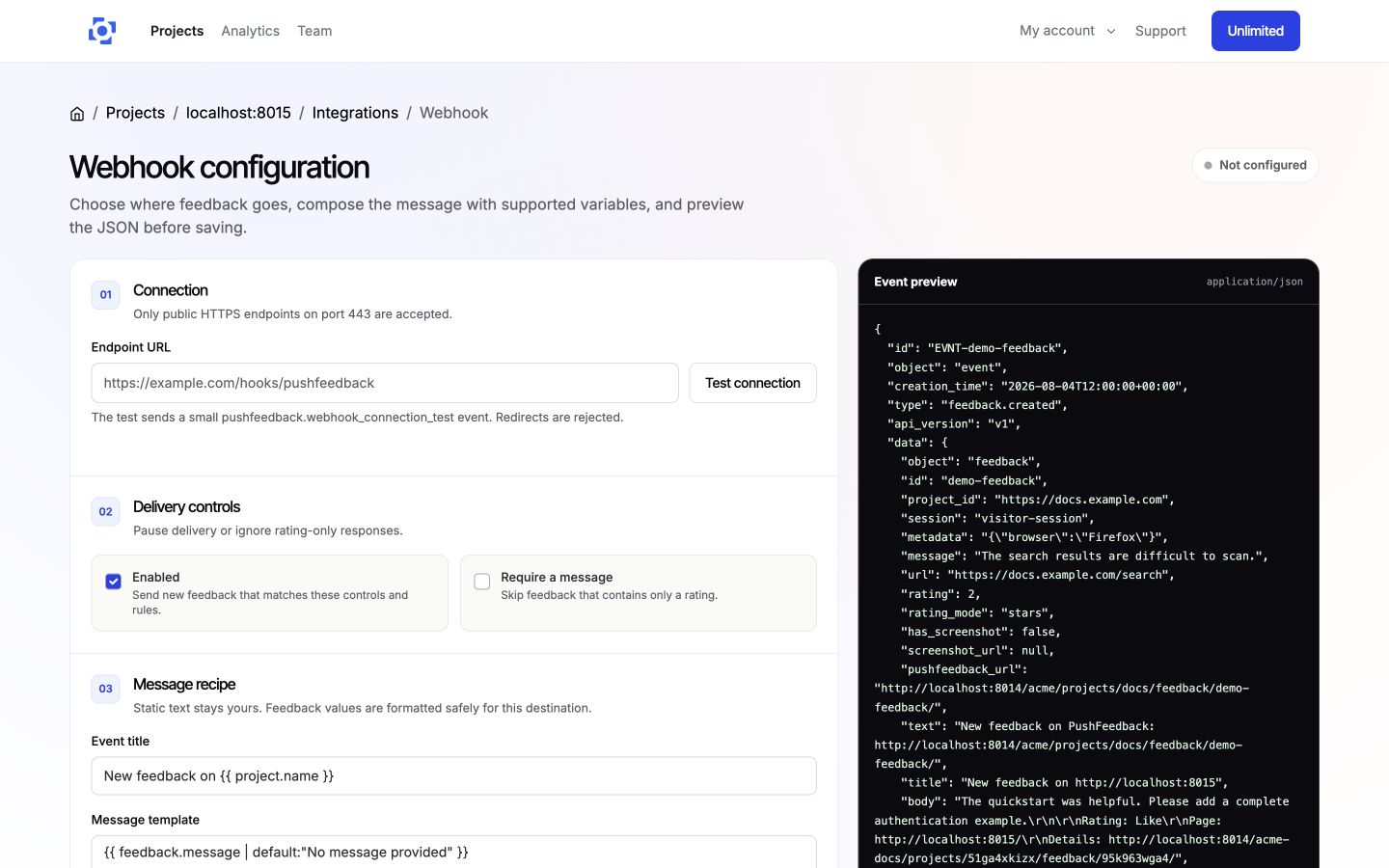
Add the URL of the Zapier endpoint where you want to send the feedback data and configure your Zap on Zapier. For detailed instructions on setting up incoming webhooks in Zapier, refer to Zapier's documentation. The endpoint must be public HTTPS on port 443.
-
Use the webhook editor to choose a title, message template, optional delivery rules, and custom fields. On wider screens, inspect the JSON preview before saving.
-
Use Test connection to send a small test event to the Zapier webhook. Then click Save webhook.
Webhook specification
Sample integrations
Zapier offers hundreds of integrations with popular apps and services, allowing you to create custom workflows tailored to your needs. Some examples of integrations you can achieve with PushFeedback and Zapier include:
- Sending feedback data to a custom database, CRM, or internal service.
- Notifying your team in Slack or Microsoft Teams whenever new feedback is submitted.
- Adding feedback entries to a Google Sheets document for analysis and reporting.
- Integrating with CRM systems like Salesforce to keep track of customer feedback.
For Trello and Asana, use the dedicated Trello or Asana integration when it fits your workflow.