GitHub Issues integration
Turn feedback into GitHub issues in a repository you control.
GitHub Issues is available on the Professional and Unlimited plans.
Before you start
You need a PushFeedback project and a team Administrator role.
- Create a fine-grained personal access token for the target repository. Grant it read and write access to Issues. The repository must have Issues enabled. For an organization repository, complete any required token approval or SSO authorization.
- Copy the repository owner and name from its URL:
github.com/<owner>/<repository>. - PushFeedback encrypts the token and never displays it again.
Configure GitHub Issues
-
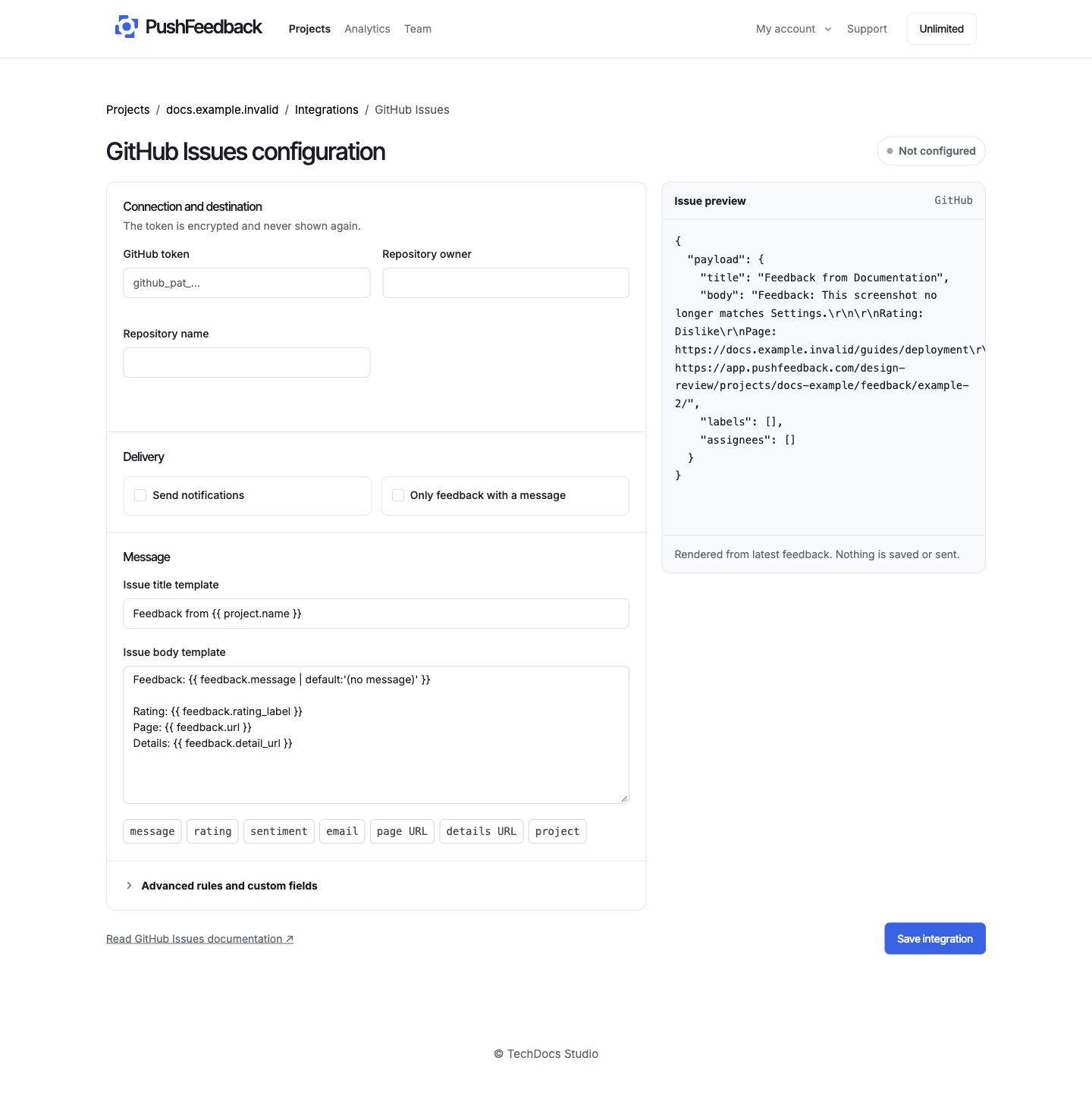
In the PushFeedback dashboard, open your project, then Settings > Integrations > GitHub Issues.
-
In 01 Connection and destination, enter the token, repository owner, and repository name.
-
In 02 Delivery controls, keep Enabled selected or pause delivery without losing the configuration. Select Require a message to skip rating-only feedback.
-
In 03 Message recipe, customize the issue title and body with feedback and project variables.
-
Under Advanced rules and custom fields, add optional labels, assignees, and delivery rules.
-
Save the integration, then select Test connection to verify repository access without creating an issue.
For variables, filters, and JSON examples, see message templates and delivery rules.
Delivery behavior
Only enabled integrations deliver feedback that matches the controls and rules. See delivery troubleshooting if nothing arrives.
Remove GitHub Issues
Open the GitHub Issues integration settings and select Remove, then confirm Remove integration.