monday.com integration
Create a monday.com item from feedback in the board and group you choose.
monday.com is available on the Professional and Unlimited plans.
Before you start
You need a PushFeedback project and a team Administrator role.
- Create an API token by following monday.com's authentication guide. The token must have access to the target board.
- Copy the board ID from the board URL:
monday.com/boards/<board_id>. - Use the monday.com API to query
boards(ids: BOARD_ID) { groups { id title } }, then copy theidfor the destination group. See the groups API reference. - If you want to include a longer message, enable Developer Mode and copy the ID of a compatible long-text column.
Configure monday.com
-
In PushFeedback, open your project, then Settings > Integrations > monday.com.
-
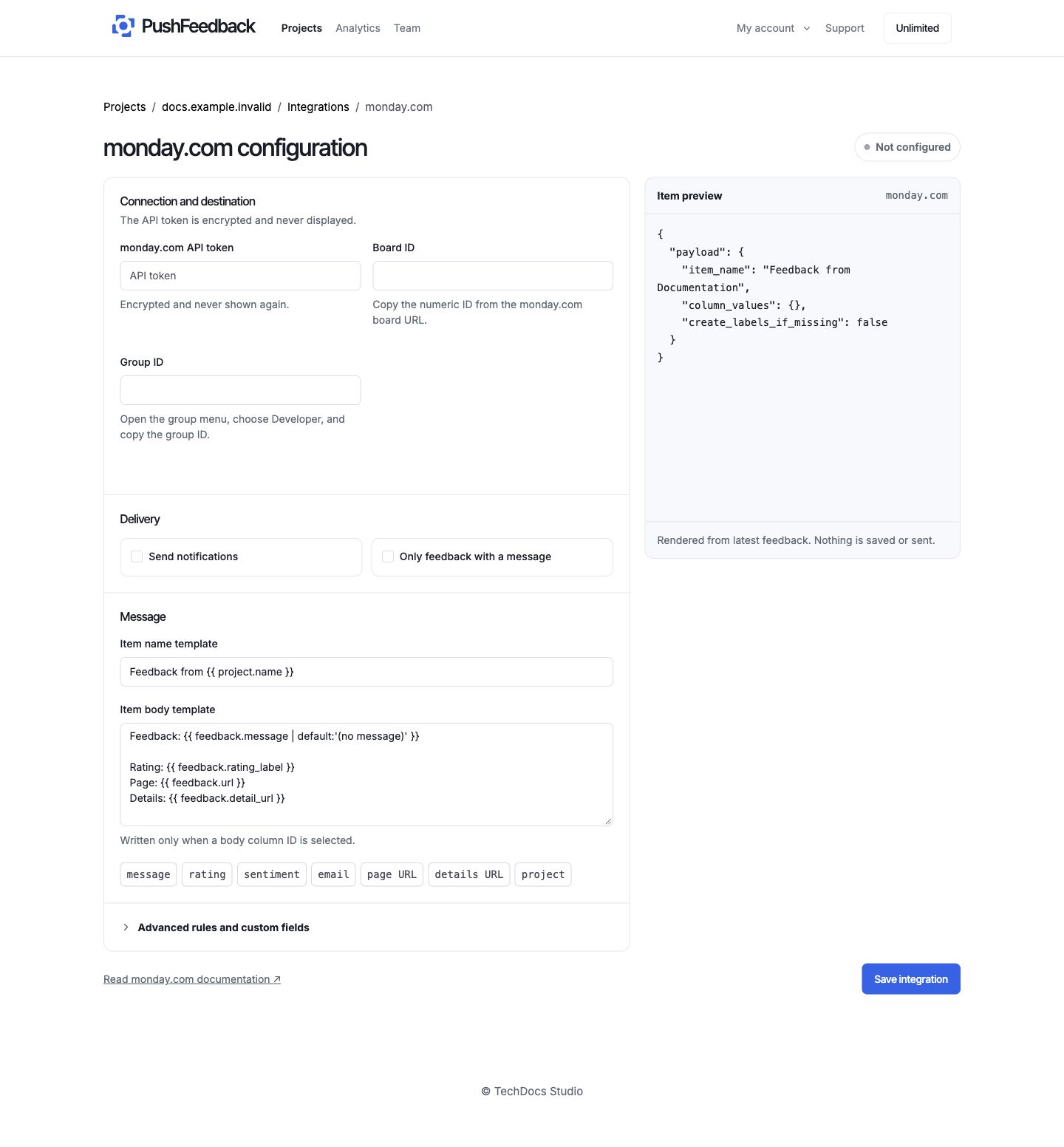
In 01 Connection and destination, enter the API token, board ID, and group ID. Helper text below each field explains where to copy the IDs.
-
In 02 Delivery controls, keep Enabled selected or pause delivery without losing the configuration. Select Require a message to skip rating-only feedback.
-
In 03 Message recipe, set the item name and optional body template. Use the variable buttons to insert feedback values.
-
Under Advanced rules and custom fields, add the body column ID, column mappings, delivery rules, and status-label behavior when needed.
-
Save the integration, then select Test connection to verify the board and group. It does not create an item.
For variables, filters, and JSON examples, see message templates and delivery rules.
Delivery behavior
Only enabled integrations deliver feedback that matches the controls and rules. See delivery troubleshooting if nothing arrives.
Remove monday.com
Open the monday.com integration settings and select Remove, then confirm Remove integration.