Linear integration
Create a Linear issue for each feedback submission that matches your delivery rules.
info
Linear is available on the Professional and Unlimited plans.
Before you start
- In Linear, go to Settings > Account > Security & access and create a personal API key. See Linear's API and webhook guide.
- Use Linear's GraphQL API to query
teams { nodes { id name } }, then copy theidfor the destination team. QueryprojectsandissueLabelsthe same way if you want to set the optional project and labels. - PushFeedback encrypts the API key and never shows it again.
Configure Linear
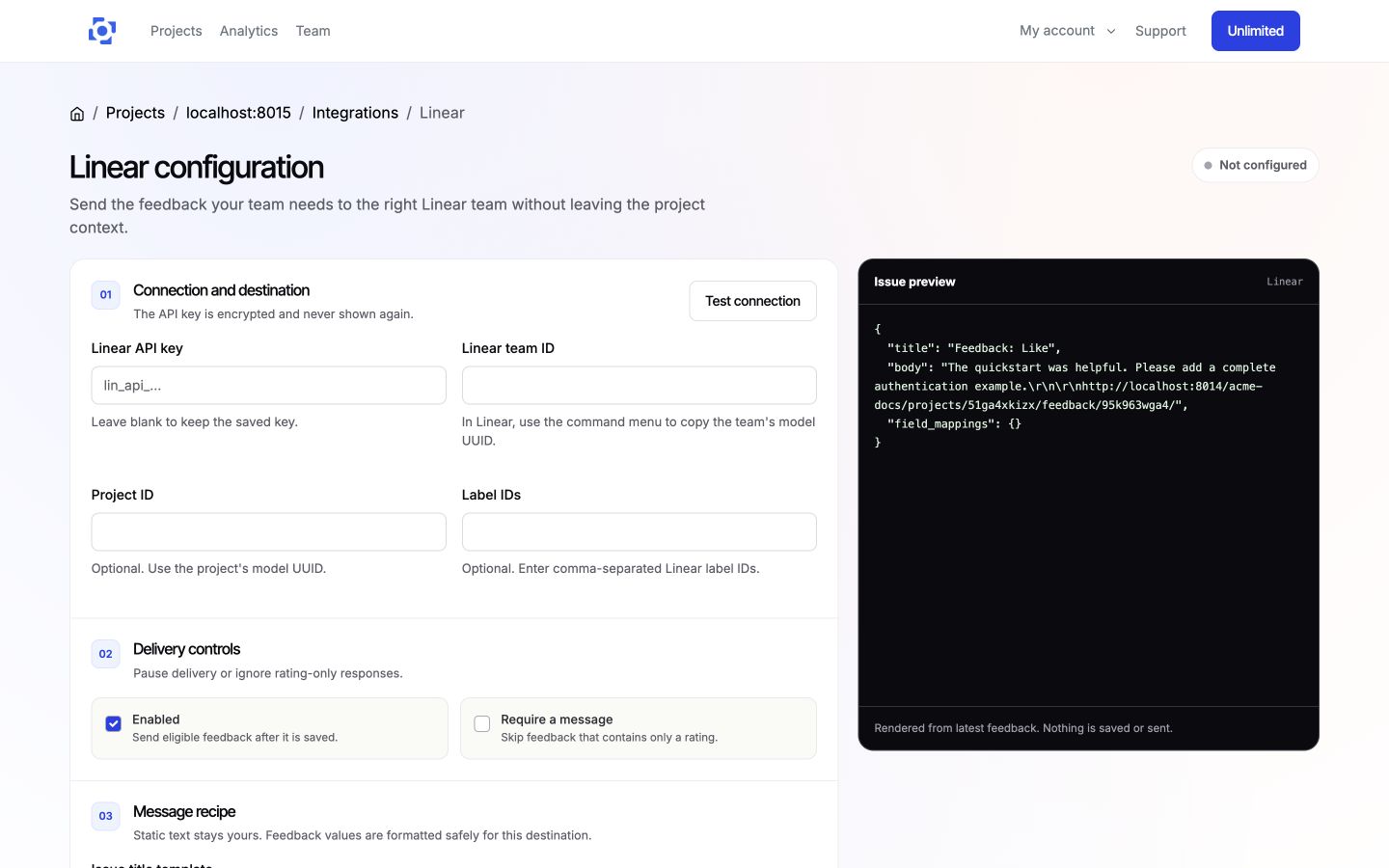
- Open your project in the PushFeedback dashboard, then Settings > Integrations > Linear.
- In 01 Connection and destination, enter the API key and destination team ID.
- In 02 Delivery controls, keep Enabled selected or pause delivery without losing the configuration. Select Require a message to skip rating-only feedback.
- In 03 Message recipe, write the issue title and description with supported feedback and project variables.
- Under Advanced rules and custom fields, add an optional project ID, label IDs, delivery rules, and supported mappings.
- On wider screens, review the live issue preview while you edit. Select Test connection to validate the key without creating an issue.
- Save the integration.
Delivery behavior
When the integration is enabled, feedback matching your delivery controls and rules creates an issue in the configured Linear team.
Remove Linear
Open the Linear integration settings and select Remove, then confirm Remove integration.