Feedback widget for Paligo
PushFeedback collects user feedback directly from your website. This guide covers installation in Paligo.
Prerequisites
Before you begin, you need:
- A PushFeedback account. If you don't have one, sign up for free.
- A project created in your PushFeedback dashboard. If you haven't created one yet, follow the steps in the Quickstart guide.
- A Paligo account with publishing permissions.
Installation
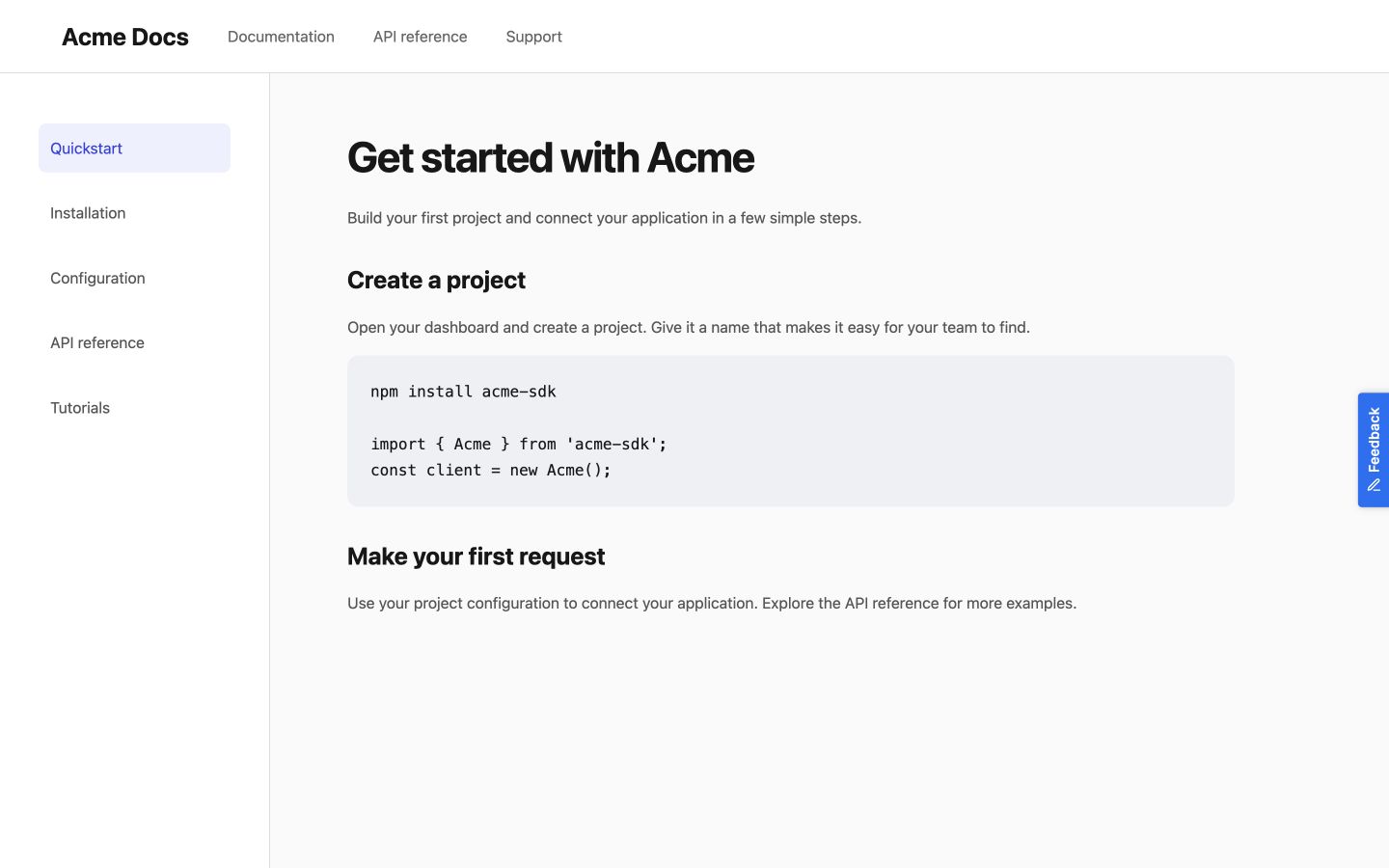
Floating button
-
Log in to your Paligo account and open your publication.
-
Navigate to Settings > Layout and select the HTML5 layout you want to modify.
-
In the Layout Editor, go to the Scripts section.
-
In the Head Section field, add the following code to load the PushFeedback styles and scripts:
<link rel="stylesheet" href="https://cdn.jsdelivr.net/npm/pushfeedback/dist/pushfeedback/pushfeedback.css"/><script type="module" src="https://cdn.jsdelivr.net/npm/pushfeedback/dist/pushfeedback/pushfeedback.esm.js"></script> -
In the Body Section field (or Footer Section if available), add the feedback button:
<feedback-button project="<YOUR_PROJECT_ID>" button-position="bottom-right" modal-position="bottom-right" button-style="dark">Feedback</feedback-button>Replace
<YOUR_PROJECT_ID>with your project's ID from the PushFeedback dashboard. -
Save your layout changes.
-
Publish your Paligo documentation using the modified layout.
-
Open your published documentation in a web browser to verify the feedback button appears and functions correctly.
Alternative: Using Custom CSS/JS Files
If your Paligo layout supports custom CSS and JavaScript files:
-
Create a JavaScript file with the following content:
// Load PushFeedback(function() {var link = document.createElement('link');link.rel = 'stylesheet';link.href = 'https://cdn.jsdelivr.net/npm/pushfeedback/dist/pushfeedback/pushfeedback.css';document.head.appendChild(link);var script = document.createElement('script');script.type = 'module';script.src = 'https://cdn.jsdelivr.net/npm/pushfeedback/dist/pushfeedback/pushfeedback.esm.js';document.head.appendChild(script);script.onload = function() {var feedbackButton = document.createElement('feedback-button');feedbackButton.setAttribute('project', '<YOUR_PROJECT_ID>');feedbackButton.setAttribute('button-position', 'bottom-right');feedbackButton.setAttribute('modal-position', 'bottom-right');feedbackButton.setAttribute('button-style', 'dark');feedbackButton.textContent = 'Feedback';document.body.appendChild(feedbackButton);};})();Replace
<YOUR_PROJECT_ID>with your project's ID from the PushFeedback dashboard. -
Upload this file to your Paligo resources and reference it in your layout's Scripts section.
Other installation modes
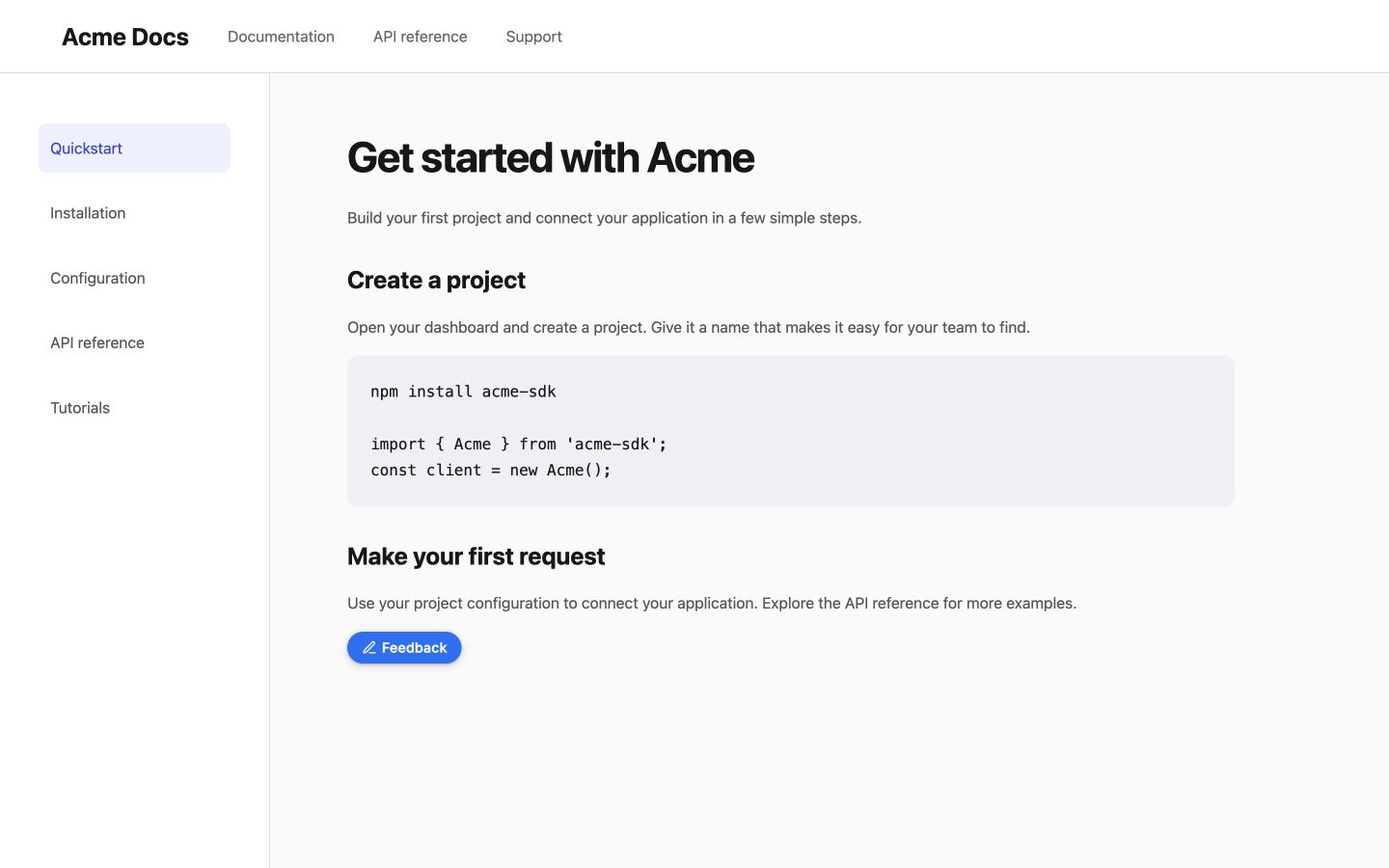
Inline button
-
Load the widget in the layout’s Head Section:
<link rel="stylesheet" href="https://cdn.jsdelivr.net/npm/pushfeedback/dist/pushfeedback/pushfeedback.css"><script type="module" src="https://cdn.jsdelivr.net/npm/pushfeedback/dist/pushfeedback/pushfeedback.esm.js"></script> -
Place the button in the layout’s Body Section or topic content:
<feedback-button project="<YOUR_PROJECT_ID>" button-position="default" modal-position="center" button-style="dark">Feedback</feedback-button>
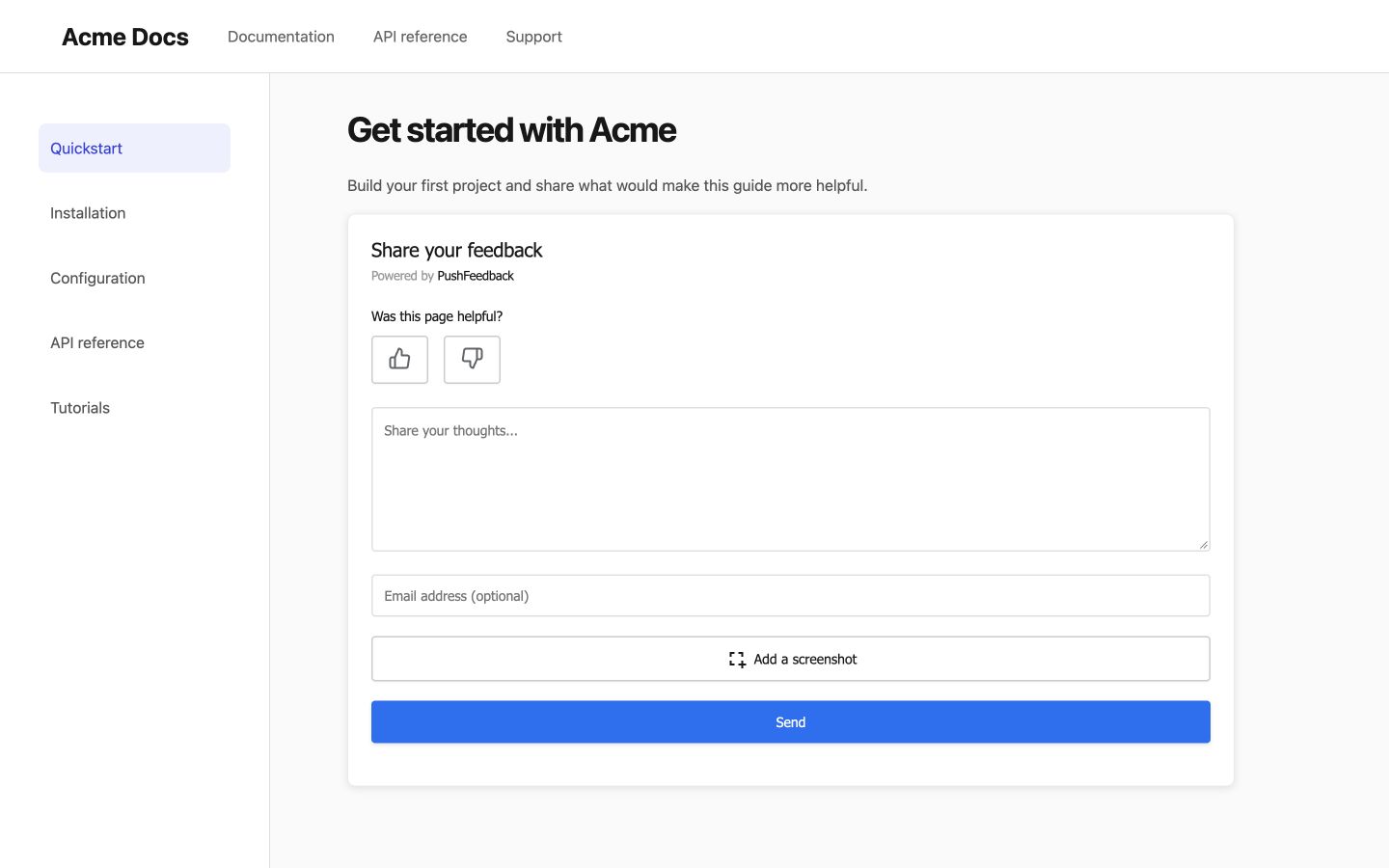
Embedded form
-
Load the widget in the layout’s Head Section:
<link rel="stylesheet" href="https://cdn.jsdelivr.net/npm/pushfeedback/dist/pushfeedback/pushfeedback.css"><script type="module" src="https://cdn.jsdelivr.net/npm/pushfeedback/dist/pushfeedback/pushfeedback.esm.js"></script> -
Place the form in the layout’s Body Section or topic content:
<feedback-modal project="<YOUR_PROJECT_ID>" embedded="true"></feedback-modal>
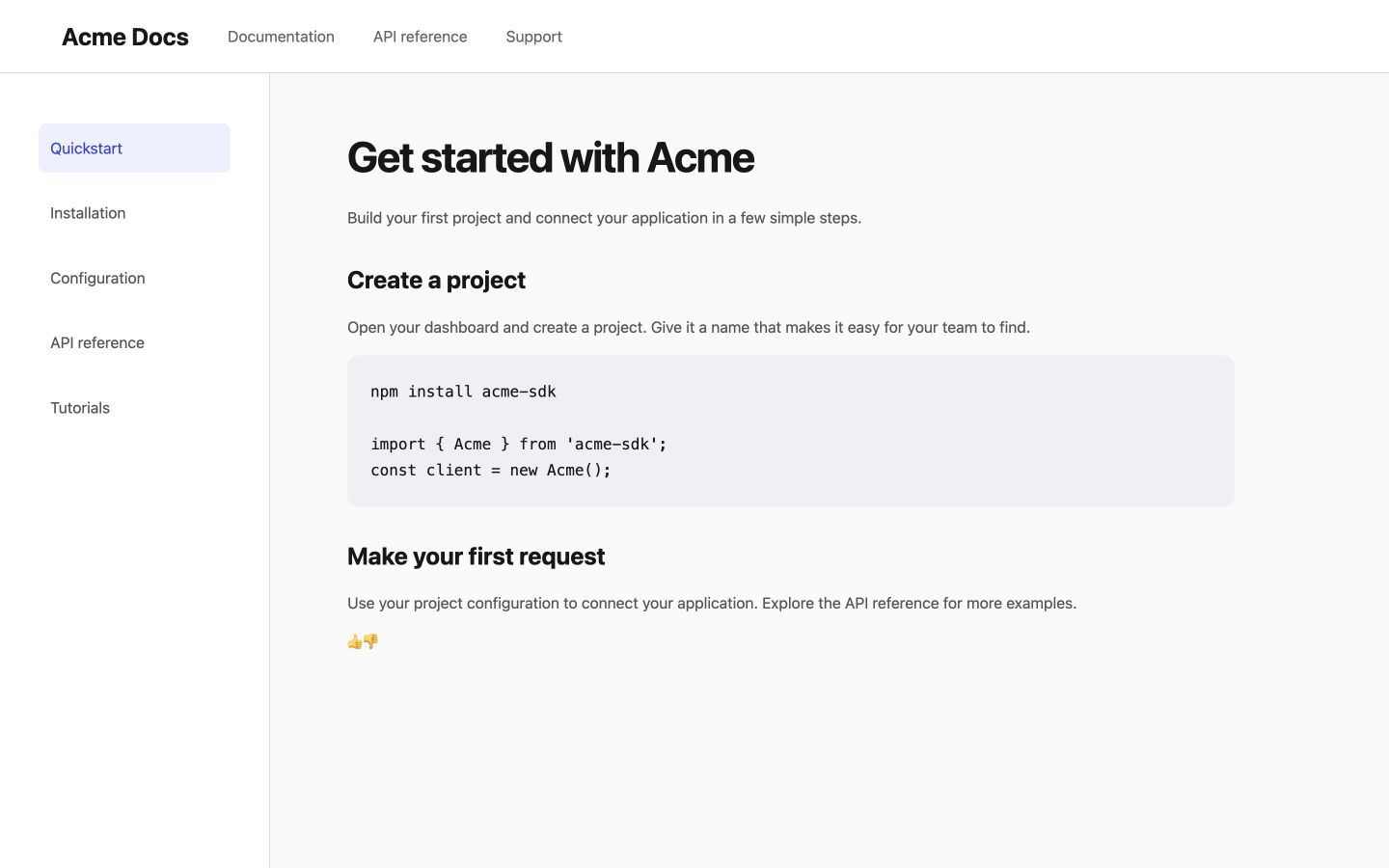
Like and dislike buttons
-
Load the widget in the layout’s Head Section:
<link rel="stylesheet" href="https://cdn.jsdelivr.net/npm/pushfeedback/dist/pushfeedback/pushfeedback.css"><script type="module" src="https://cdn.jsdelivr.net/npm/pushfeedback/dist/pushfeedback/pushfeedback.esm.js"></script> -
Place the rating controls in the layout’s Body Section or topic content:
<p>Was this helpful?</p><div class="pushfeedback-thumbs-row"><feedback-button project="<YOUR_PROJECT_ID>" rating="1" button-position="default" modal-position="center" button-style="default" custom-font="true"><span class="pushfeedback-thumb-label">Helpful</span><svg xmlns="http://www.w3.org/2000/svg" width="24" height="24" viewBox="0 0 24 24" fill="none" stroke="currentColor" stroke-width="2" stroke-linecap="round" stroke-linejoin="round" aria-hidden="true"><path d="M14 9V5a3 3 0 0 0-3-3l-4 9v11h11.28a2 2 0 0 0 2-1.7l1.38-9a2 2 0 0 0-2-2.3zM7 22H4a2 2 0 0 1-2-2v-7a2 2 0 0 1 2-2h3" /></svg></feedback-button><feedback-button project="<YOUR_PROJECT_ID>" rating="0" button-position="default" modal-position="center" button-style="default" custom-font="true"><span class="pushfeedback-thumb-label">Not helpful</span><svg xmlns="http://www.w3.org/2000/svg" width="24" height="24" viewBox="0 0 24 24" fill="none" stroke="currentColor" stroke-width="2" stroke-linecap="round" stroke-linejoin="round" aria-hidden="true"><path d="M10 15v4a3 3 0 0 0 3 3l4-9V2H5.72a2 2 0 0 0-2 1.7l-1.38 9a2 2 0 0 0 2 2.3zm7-13h2.67A2.31 2.31 0 0 1 22 4v7a2.31 2.31 0 0 1-2.33 2H17" /></svg></feedback-button></div>
Clicking a rating opens the form with that rating selected; it does not submit until the visitor sends it.
Next steps
Choose what to do next:
- Customization — Adjust the widget's layout, styles, and text.
- Integrations — Forward feedback to Slack, email, Jira, and more.